Accessing the System
Users should remotely connect to chip.rs.umbc.edu with their favorite remote connection client (terminal/wsl/command prompt/PuTTY/VS Code). Login credentials are identical to UMBC credentials. If you are not on the campus VPN or on the “eduroam” wifi, you will need to interact with the Duo 2FA Application to complete your login.
User Environment
By default, the system will display the Message Of The Day (motd) after a successful login and generate a bash prompt within the user’s home directory. Every user is associated with a UNIX group normally beginning with “pi_”, e.g. pi_professor.
Home Directory Storage
Every user’s home directory has a storage quota of 500MB. The amount of available space in your home directory can be found by running df -h /home/username.
Research Storage
Any research storage volume associated with your UNIX group is located at /umbc/rs/, e.g., /umbc/rs/professor for a UNIX group pi_professor. This research storage volume is the same volume that is shared across the taki.rs.umbc.edu system.
An alias to these research volumes has been created for you. To access these research volumes enter the command <professorName>_common for the common research volumes, or <professorName>_user for your user specific research volumes. You can view all aliases available to you by running the command alias from anywhere on the system.
Workload Management (slurm)
Every user is associated with a slurm user and slurm account. These mirror the UNIX user and group. E.g., user student belonging to UNIX group pi_professor is associated with a slurm user student and a slurm account pi_professor.
Partitions and QOSs
On chip, there exist a series of overlapping hardware partitions. The hardware partitions are designed to logically group cluster machines based on their high-level hardware differences. The access partitions are designed to logically group cluster machines based on who can access the machines with slurm.
| Hardware Partition | Cores | RAM | Number | CPU Arch |
| 2018 | 36 | 376GB | 0 | Intel Skylake |
| 2021 | 48 | 187GB | 0 | Intel Cascade Lake |
| 2024 | 64 | 512GB/1024GB | 51 | Intel Emerald Rapids |
Table 1: Overview of Hardware-level partitions configured in slurm on chip
| Access Partition | Requestable By | Can jobs be preempted? | Available QOS | Machines |
| contrib | contributor accounts | Yes, by owners of hardware | shared | n[001-051] |
| match | contributor accounts | No | shared | n[029-051] |
| general | all accounts | No | short, normal, medium, long | N/A |
| support | system administrators | No | support | ALL |
| pi_<professorName> | users within pi_<professorName> | No | pi_<professorName> | Depends on contributor |
Table 2: Overview of Access-level partitions configured in slurm on chip
| QOS | Requestable By | “Wall” Time | Cores per Account |
| shared | pi_<professor> | 14 days | 2944 (23 machines) |
| short | all accounts | 1 hour | 2944 |
| normal | all accounts | 4 hours | 1280 |
| medium | all accounts | 1 day | 640 |
| long | all accounts | 5 days | 256 |
| pi_<professorName> | pi_<professorName> | Unlimited | Unlimited |
Table 3: Overview of QOS resource limitations
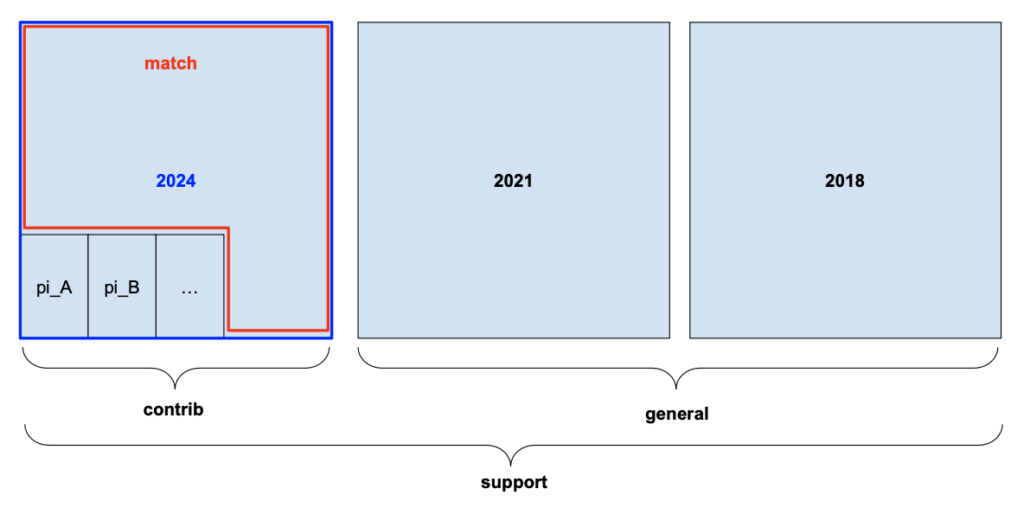
Figure 1: Cartoon overview of hardware and access-level partitions.
Running a Job (More content soon)
There are no required slurm flags, but each user will need to curate a command such as what is listed below for various runtime scenarios. In each case, srun is used as only for illustrative purposes, sbatch and salloc remain perfectly valid on chip.